FlexiRule Docs
Action Settings Panel
Learn how to configure individual action nodes using the Action Settings panel and Schema Browser.
Action Settings Panel#
When you select an action node on the canvas, its Action Settings panel opens. This panel provides all input fields, operations, and settings for that specific step.
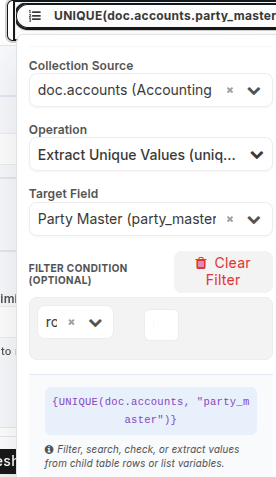
Panel Interface Layout#
The Action Settings panel is divided into clear sections:
1. Node Header & Title#
- Node Title: Rename the node to reflect its business function (e.g. rename
NotifytoSend Approval Notification to Manager). - Action Type Badge: Displays the action type name and icon (e.g. Check , Set Value ).
- Close Button: Closes the drawer or returns focus to the canvas.
2. Action Description & Help Guide#
Every action includes inline description text explaining what the action does, what inputs it expects, and what outputs it produces.
3. Dynamic Configuration Controls#
Depending on the selected action, controls are dynamically rendered:
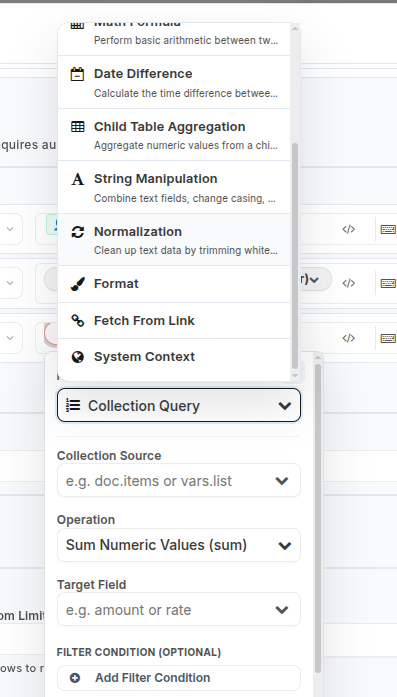
- Smart Value Inputs: Text fields integrated with the Smart Value Selector (
@and/). - Select Dropdowns: Single-choice dropdowns for selecting operations or channels.
- Checkboxes & Switches: Toggles for boolean flags (e.g.
Stop Execution on Error). - Inline Grids: Tabular controls for mapping multiple fields or variable assignments at once.
- Tiptap Rich Text Editors: Formatted text editors for drafting notification emails and templates.
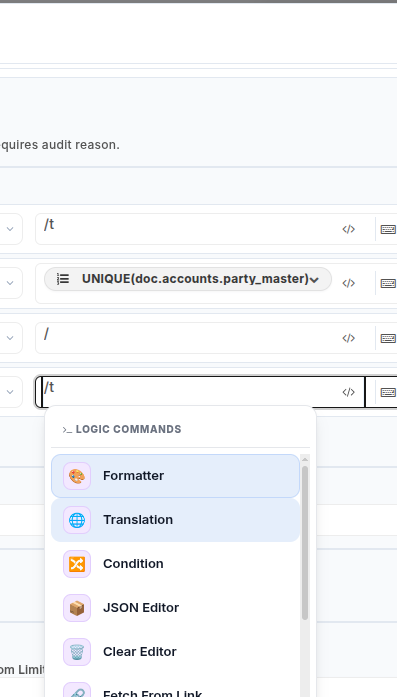
Schema & Variable Integration#
The panel is fully context-aware:
- Available Variables: Press
@in any input to see all document fields (@doc) and variables created by preceding nodes (@vars). - Live Validation: Any missing required fields or invalid formula syntax generate real-time inline warning notices .
Auto-Saving Configuration#
All changes made in the Action Settings panel are drafted instantly. Click Save (Ctrl S) in the top action bar to persist changes to the database.
Was this page helpful?